

Introduction
Modern businesses depend on data to manage customers, sales, reports, and daily operations. SQL Server Integration Services, known as SSIS, helps organizations move information between databases, spreadsheets, files, cloud platforms, and business applications. A package may stop when SQL Server finds an identity-column or destination-mapping problem. This is where SSIS 469 often appears in online searches.
Many users assume it is a special SSIS version or a general software failure. In fact, SQL Server message 469 is linked to the KEEPIDENTITY option and a missing target-column list. Understanding the real cause saves time and prevents unnecessary package changes. This guide explains its meaning, common causes, practical fixes, and prevention methods.
What Does SSIS 469 Mean?
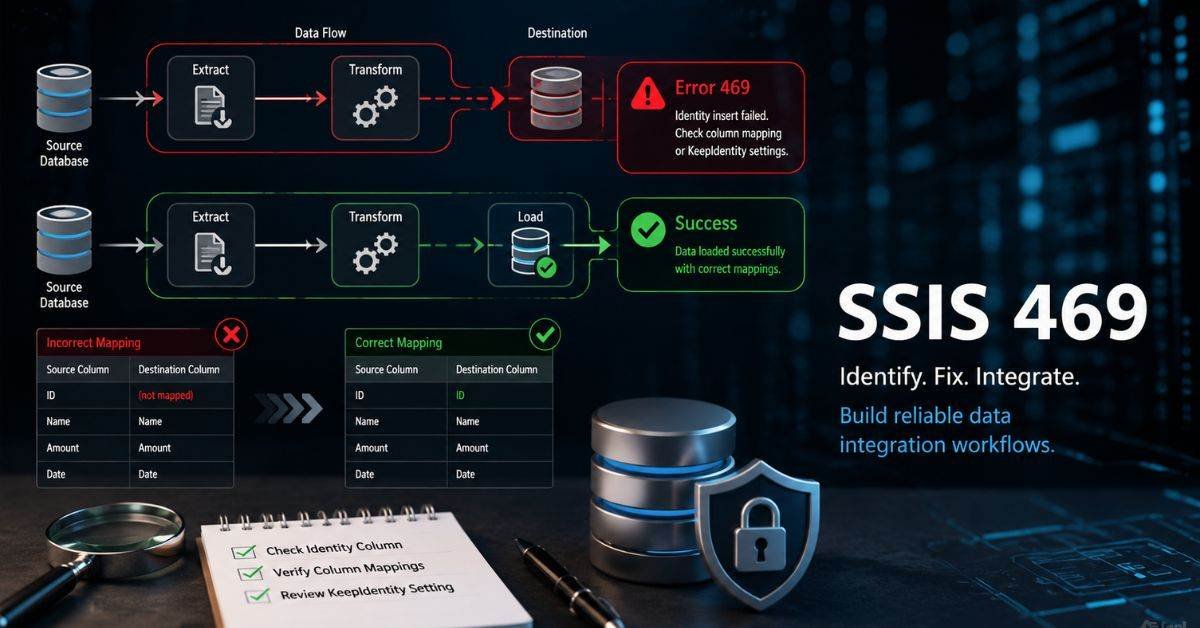
SSIS 469 is not an official version of SQL Server Integration Services. It is a search phrase used when an SSIS package displays SQL Server error 469 during a data load. The message usually appears when a package tries to preserve original identity values, but SQL Server cannot clearly identify the columns receiving the data. An identity column automatically creates a unique number for each row. A customer table, for example, may assign IDs such as 101, 102, and 103.
The KEEPIDENTITY option tells SQL Server to use identity numbers from the source instead of creating new ones.
| Term | Simple Meaning |
| Identity column | A field that automatically creates unique numbers |
| KEEPIDENTITY | An option that keeps IDs from the source |
| Target-column list | The destination columns receiving data |
| SSIS package | A workflow that moves or changes data |
Why Does the Error Appear?
The main reason SSIS 469 appears is that SQL Server needs clearer loading instructions. It knows that the package wants to keep identity values, but it cannot determine where each incoming value belongs.
Common causes include
- The identity field is missing from the destination mapping.
- Keep Identity was enabled by mistake.
- The destination table structure changed.
- The package is using old column information.
- Source and target fields are in different orders.
- A command uses SELECT * instead of named columns.
These issues often appear after a database field is added, removed, or renamed. The package may continue using older information even though the table structure has changed.
How Identity Columns Affect Data Loads
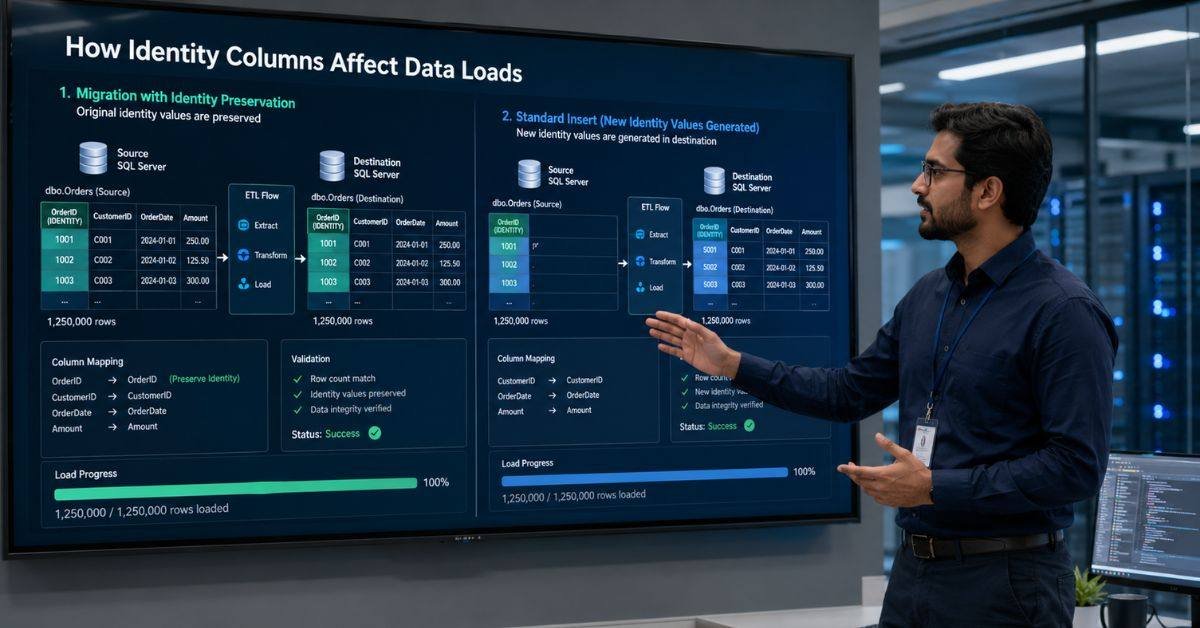
To understand SSIS 469, imagine a school database that gives every student a unique ID. During a normal import, SQL Server creates new numbers. During a migration, however, the school may need to keep the old IDs because fees, attendance, and examination records are connected to them.
Keep Identity is useful when
- Existing records must keep their original IDs.
- Related tables depend on the same numbers.
- Data is moving to a new server.
- Archived records are being restored.
- Historical database keys must stay unchanged.
Keep Identity should remain disabled when the destination database can safely create new numbers. Turning it on without a clear reason can make the import more complicated and increase the chance of duplicate values.
How to Diagnose SSIS 469
Do not rebuild the whole package after seeing SSIS 469. First, read the complete message and identify the component that failed.
Follow these steps
- Open the package execution report.
- Find the first meaningful error.
- Record the failed task and target table.
- Verify if there is an identity column in the table.
- Review the destination settings.
- Confirm whether Keep Identity is enabled.
- Inspect each source-to-target mapping.
- Test the package with a small data sample.
The earliest clear message usually shows the real cause. The final “package failed” notice normally reports only the result of the earlier problem.
How to Fix the Problem
The safest fix for SSIS 469 is to make every destination mapping clear. Open the destination component and review its Mappings page. When original IDs must remain unchanged, connect the source identity field to the destination identity column and keep the option enabled. When new IDs are acceptable, remove that mapping and disable Keep Identity.
| Situation | Recommended Action |
| Original IDs must be preserved | Enable Keep Identity and map the ID field |
| New IDs are acceptable | Disable Keep Identity |
| The table was recently changed | Refresh metadata and rebuild mappings |
| Column order is uncertain | Name every source and target field |
| Source IDs are missing | Allow SQL Server to create new IDs |
Avoid using SELECT * in important packages. Naming every column makes the data flow safer, clearer, and easier to repair after a table change.
Other Errors That Look Similar
Not every failed data load is SSIS 469. Integration packages can stop for several other reasons, so developers should always check the full message.
Similar failures include
- Text is too long for the target field.
- A date or number has an invalid format.
- A required file cannot be found.
- The service account lacks permission.
- A primary key already exists.
- A database password has changed.
- A required field contains a blank value.
Always use the complete error code instead of guessing. Changing identity settings will not fix a file permission, invalid date, duplicate key, or missing connection problem.
Logging and Error Handling
Good logging makes SSIS 469 easier to investigate. SSIS can record task names, warnings, execution times, row counts, and detailed database messages. A useful error table should store the package name, failed task, rejected row, error code, date, and resolution status. Developers can also redirect rejected rows to a separate output. This allows valid records to continue while incorrect information is reviewed safely. Logging creates a useful history of package problems. When the same failure returns, the support team can compare earlier solutions instead of starting the investigation again.
How to Prevent the Error
Preventing SSIS 469 is easier than repairing a failed production process. A careful review before deployment can catch most identity and mapping mistakes.
Use this checklist
- Name all source and target columns.
- Review whether identity preservation is necessary.
- Avoid SELECT * in production packages.
- Refresh mappings after table changes.
- Test with realistic sample data.
- Enable useful package logging.
- Save changes in version control.
- Compare source and destination row counts.
- Document database design changes.
- Test packages after platform upgrades.
A separate testing environment also helps developers find problems before live business data, reports, or customer records are affected.
Best Practices for Reliable Packages
Reliable data packages are clear, controlled, and easy to monitor. Understanding SSIS 469 can also help developers solve other ETL problems more quickly. Give every task a meaningful name, document important settings, and keep mappings easy to review. Use error outputs for risky data conversions and smaller batches during testing. Identity values should only be preserved when there is a genuine business reason. Automatic alerts can also improve reliability. An early warning gives the support team time to investigate before reports, websites, or business applications receive incomplete information.
FAQs
Is SSIS 469 an official SSIS version?
No, SSIS 469 is not a version of the product. It normally refers to SQL Server message 469 shown during an SSIS data load.
What is the quickest way to fix it?
Review the Keep Identity setting and check every destination-column mapping.
Should Keep Identity be disabled?
Disable it when the destination database should create new identity numbers.
Can changed table columns trigger the problem?
Yes. Old metadata and changed column order can break source-to-target mappings.
Can data be lost?
A failed load may reject or skip rows, so always review logs and compare row counts.
Conclusion
The issue becomes easier to solve when developers examine the complete database message. It is generally not a mysterious software version or a broad SSIS failure. It is usually connected to identity values, the Keep Identity setting, and unclear destination-column mappings. The correct solution is to identify the failed component, decide whether old IDs must be preserved, and correct each source-to-target connection. Teams should also refresh metadata after database changes, avoid unclear queries, and keep detailed execution logs. Before running the package again, review the identity-column setting and test a small group of records. This simple step can prevent repeated failures, protect important data, and keep business processes running smoothly.